
WPS Office Lite
Screenshots
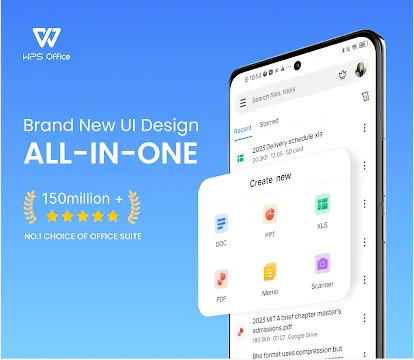
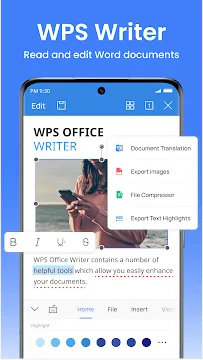
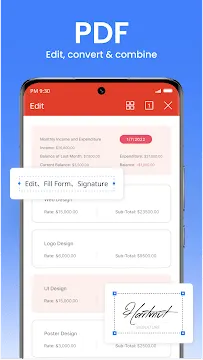
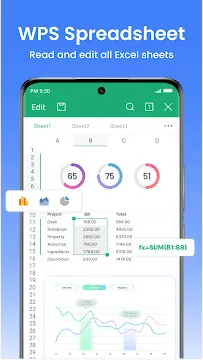
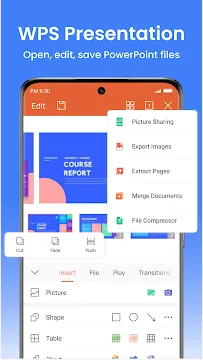
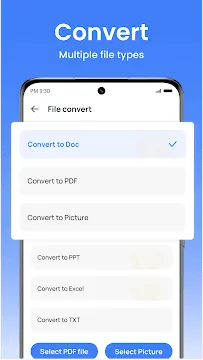
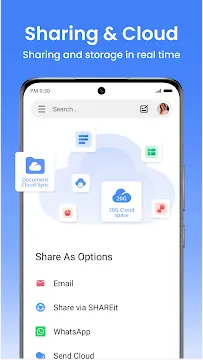
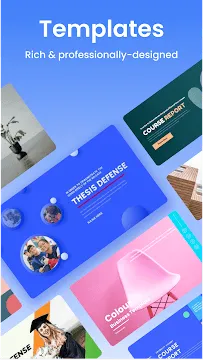
WPS Office Lite for Android is a compact office suite. It helps you view, edit, and share documents on your phone. This app takes little storage space. It works fast even on older devices. Many people need a reliable tool for work or study. This guide explains its features and benefits. You will learn how to use it effectively. Let us explore why this app is a good choice.
Why Choose WPS Office Lite Over Other Apps
You have many office apps on Google Play. But most of them are heavy. They slow down your phone. WPS Office Lite for Android solves this problem. It is only a few megabytes in size. The app loads quickly. It does not drain your battery. You can open PDFs, Word files, Excel sheets, and PowerPoint slides. The app supports all common formats. It also includes a built-in PDF converter. You can turn any document into a PDF. This feature saves time. You do not need separate apps for each task.
The app works offline too. You do not need the internet to edit files. This makes it perfect for travel or remote areas. The interface is clean. Buttons are large and easy to tap. You can find any tool in two clicks. The app also supports dark mode. This reduces eye strain at night. Many users switch from Microsoft Office to this lite version. The reason is simple: performance. Heavy apps freeze or crash. This one stays stable.
Key Features of WPS Office Lite You Must Know
- File Viewer: Open DOCX, XLSX, PPTX, PDF, TXT.
- PDF Tools: Convert, sign, and merge PDFs.
- Cloud Integration: Connect to Google Drive, Dropbox, or OneDrive.
- Templates: Use ready-made resumes, budgets, or presentations.
- Read Mode: Remove clutter for easy reading.
- Password Protection: Lock sensitive files.
- Print Support: Print directly from your phone.
The PDF converter is especially useful. You can scan a paper document using your camera. The app turns it into a PDF. Then you can edit the text. This works well for receipts, forms, or notes. Another great tool is the file compressor. You can reduce file size before sharing. This helps when email limits are small. The app also supports gestures. Pinch to zoom. Swipe to change pages. Long press to select text. These small touches improve daily use.
How to Install and Set Up WPS Office Lite
Installation is easy. Download WPS Office Lite APK . Tap “Install.” Wait a few seconds. The app is small. Open it after installation. You will see a welcome screen. Grant storage permission. This allows the app to see your files. Then choose a theme. Light or dark mode. You can also sign in with a cloud account. This is optional. But signing in syncs your files across devices. You can start working immediately. No registration is required for basic use.
Tips to Edit Documents Faster Using WPS Office Lite
Editing on a small screen can be hard. But the app includes smart tools. Use the voice typing feature. Tap the microphone icon. Speak your text. The app converts speech to words. This is faster than typing. Use the formatting bar. It appears above the keyboard. Bold, italic, underline, and bullet points are one tap away. You can also insert images directly from your gallery. The app resizes them automatically. Use the find and replace tool. Search for a word. Change it everywhere in one click. Use the undo button. It is at the top. Shake your phone to undo multiple steps. These small tricks save minutes every day.
Secure Your Documents with WPS Office Lite
Security matters for work files. You do not want others to read your private data. The app offers password protection. Open any file. Tap the menu icon. Select “Encrypt with Password.” Type a strong password. The file becomes locked. Next time, you need the password to open it. You can also hide entire folders. Go to settings. Select “Hide Folders.” Choose the folder. It disappears from the main view. Only you can unhide it using a PIN. The app does not upload your files to any server unless you use cloud sync. All local files stay on your device. This gives you full control.
How to Use the PDF Converter in WPS Office Lite
The PDF converter is one of the best tools. Follow these steps.
- Open the app.
- Tap the “Tools” tab at the bottom.
- Select “PDF to Word” or “Word to PDF.”
- Choose the file you want to convert.
- Wait two seconds. The new file appears in the same folder.
You can also merge multiple PDFs. Select “Merge PDF.” Add two or more files. Tap “Start.” The app creates one PDF. You can add signatures too. Tap “Sign PDF.” Draw your signature with a finger. Place it anywhere on the document. This replaces printing, signing, and scanning. It all happens on your phone. You can also extract images from a PDF. Tap “Extract Images.” The app saves each picture separately. These tools remove the need for a computer.
Final Thoughts
WPS Office Lite for Android delivers exactly what you need. It is small, fast, and full of features. You can view any document, edit spreadsheets and create presentations. The PDF tools alone save hours of work. The app respects your privacy. It works offline. It does not overload your phone. Students, freelancers, and business owners will all benefit. Try it for a week. You will likely uninstall other office apps. The lite version proves that good software does not need to be heavy.